Chapter 06
Widgets & Live Activity
Three widgets across seven sizes, all wearing your theme colour, plus a Live Activity that keeps counting on the Lock Screen while your phone is on the floor and your face is nowhere near it.
Home Screen widgets
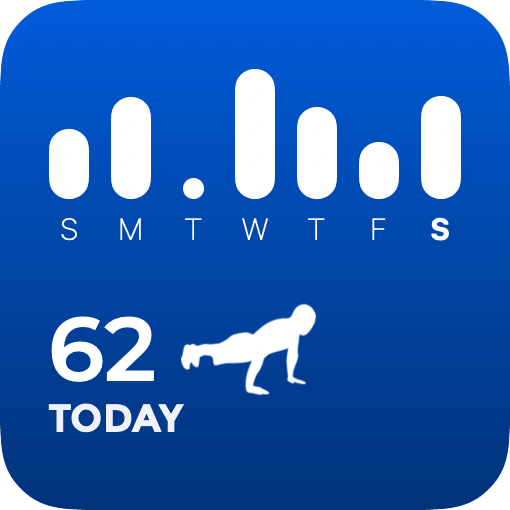
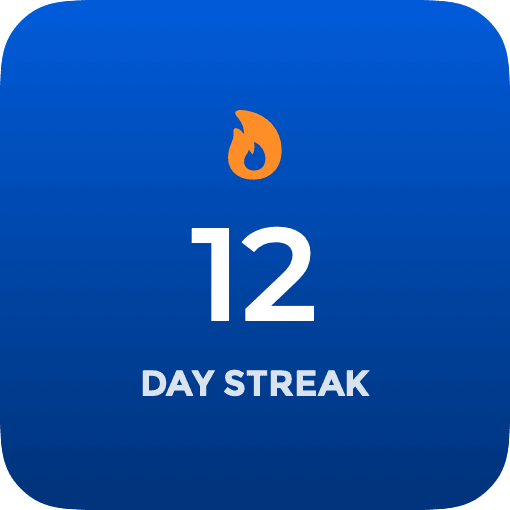
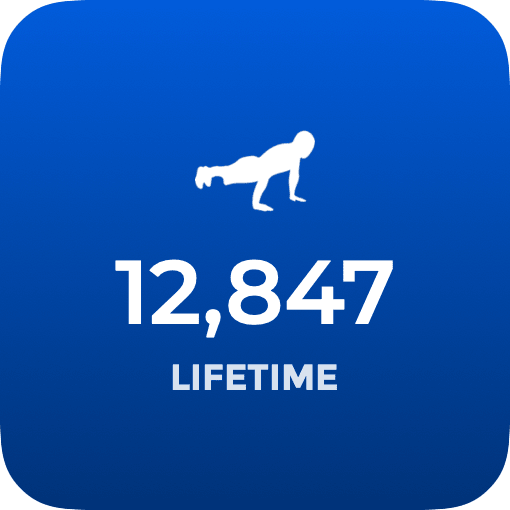
Three widgets, each answering a different question, and each painted in the accent colour you chose in the app. Change your theme and every widget on your Home Screen repaints with it.
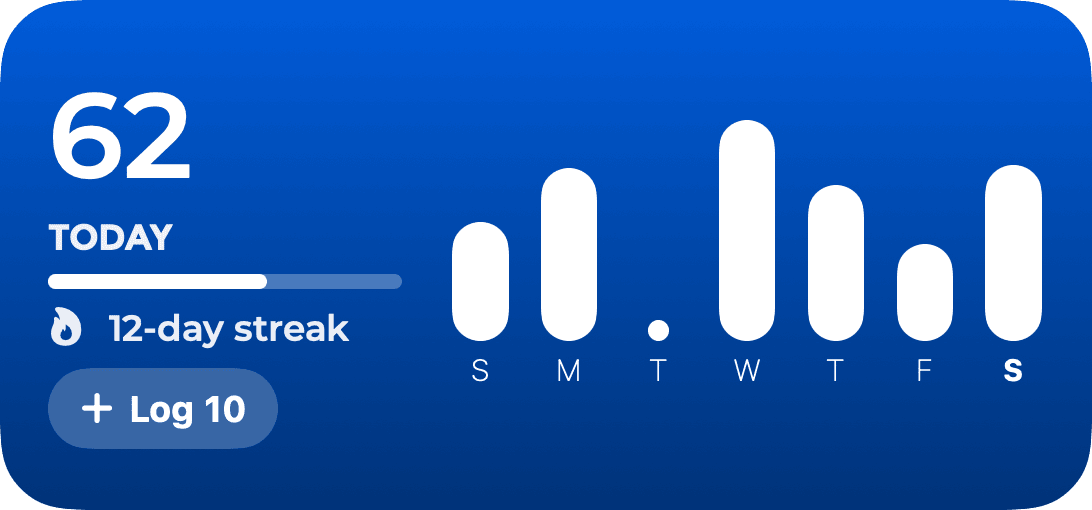
| Widget | Sizes | Shows |
|---|---|---|
| Daily Push-Ups | Small, Medium, and all three Lock Screen accessories | Today's count, the last seven days as bars with today highlighted, and on the medium size your goal bar, your streak and a Log 10 button. |
| Streak | Small, circular, inline | The flame and the number of days. |
| Lifetime | Small, inline, rectangular | Your all-time total, compactly formatted so a six-figure number still fits. |
Tapping any of them opens PushFit on your statistics.
Log 10, without opening the app
The medium Daily Push-Ups widget carries a real button. Pressing it adds ten push-ups to today right there on the Home Screen: the widget's number goes up, your goal ring moves, your streak is fed, and PushFit never comes to the foreground.
It is the fastest possible way to log a set you did without your phone, and it pairs with the Siri version of the same thing for when your hands are busy.
Lock Screen accessories
All three Lock Screen shapes are supported, and each is drawn for the space it has rather than shrunk down from the big one:
Where the canvas is too small to spell out the word "push-ups", the figure stands in for it, so the room is spent on the number instead.
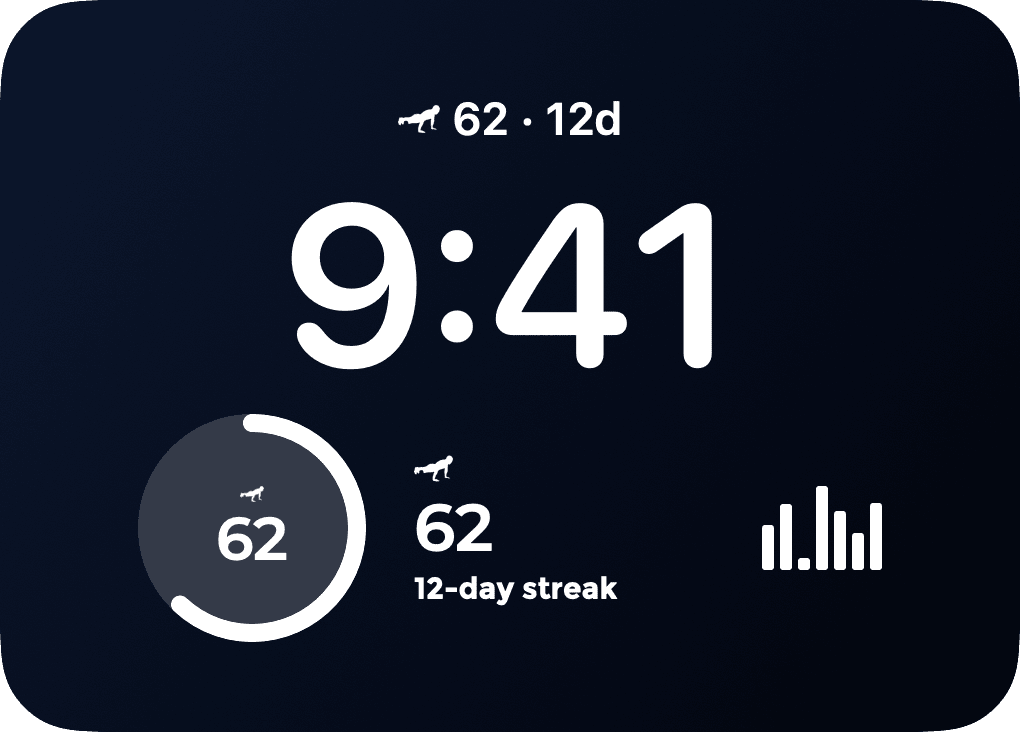
These also work in StandBy, and the same three shapes are what the Apple Watch uses for its complications.
The Live Activity
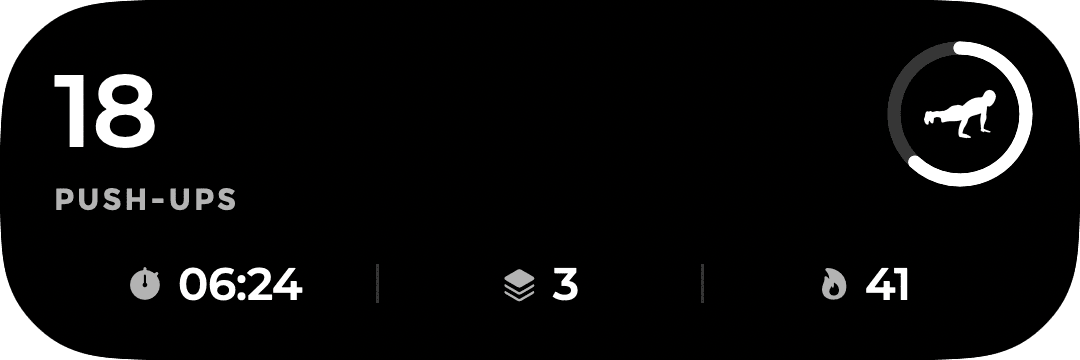
Start a workout and PushFit posts a Live Activity, so the phone on the floor keeps showing your count even when the screen has locked itself.
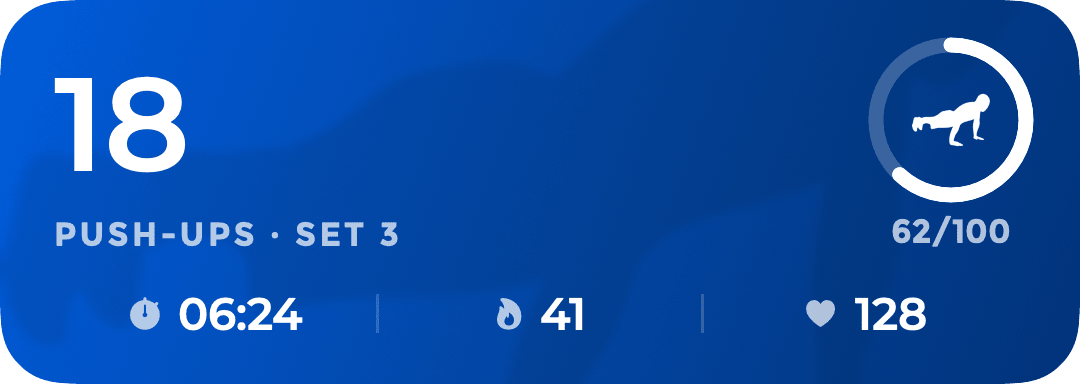
What is on it:
- The rep count, large, with the set number under it.
- A goal ring on the right showing today against your daily goal, and the numbers under it. It swaps to a checkmark once you have got there.
- A strip of vitals: elapsed time, calories, and heart rate whenever something is measuring it.
- A ghosted push-up figure behind it all, and your theme colour as the background.
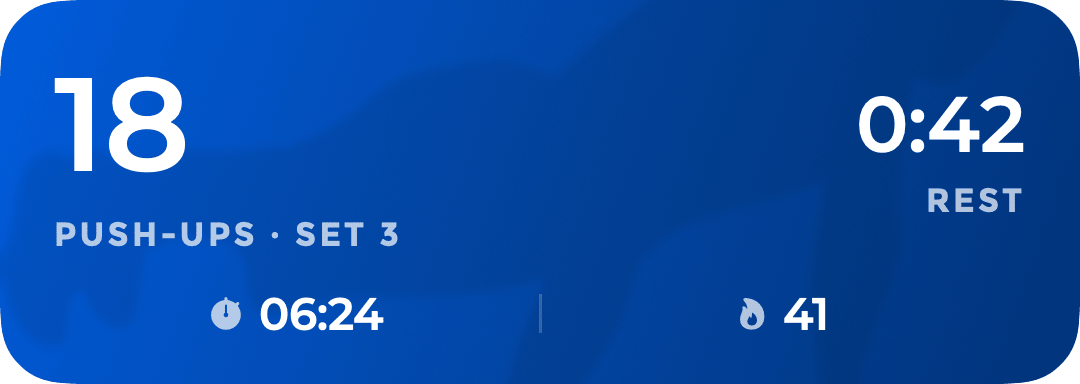
The right-hand slot is not fixed. It shows whichever of four things matters most at that moment: the rest countdown while you are resting, then your goal ring, then a completion mark when the workout is over, and the elapsed clock when there is no goal to draw. Whatever it claims is dropped from the strip below, so nothing appears twice on a card this small.
The clocks tick from dates rather than from pushed updates, which is why the timer keeps running smoothly on a locked screen without PushFit doing anything at all.
The Dynamic Island
On an iPhone with the Dynamic Island the same activity has three more forms:
Adding them
- Home Screen: touch and hold the wallpaper, tap Edit then Add Widget, search for PushFit and pick a widget and a size.
- Lock Screen: touch and hold the Lock Screen, tap Customise, then a widget slot, and choose PushFit.
- Live Activity: nothing to add. It appears when a workout starts and clears itself when the workout ends. If you would rather it did not, iOS Settings has a Live Activities switch per app.
Widgets are refreshed by iOS, not by PushFit, so a number can lag by a few minutes on a quiet day. Opening the app or finishing a workout pushes fresh numbers immediately, and every widget refreshes at midnight so it never carries yesterday's count into a new day.