Chapter 01
Counting your reps
Put the phone on the floor and it does the counting. Two methods, a handful of switches, and one rule that explains almost every miscount: the app is watching how far your face travels, not how hard you are working.
Where the settings live
SettingsCounting holds everything on this page. Settings is the round button in the top corner of the home screen.
The screen changes shape with your device. The method rows only list what your iPhone can actually do, and Push-up Bar Mode only appears while Face Detection is the chosen method, because it is a camera adjustment and means nothing to counting by tap.
Anything you change here can be put back in one tap: Restore Defaults sits in the navigation bar and only appears once something is no longer standard.
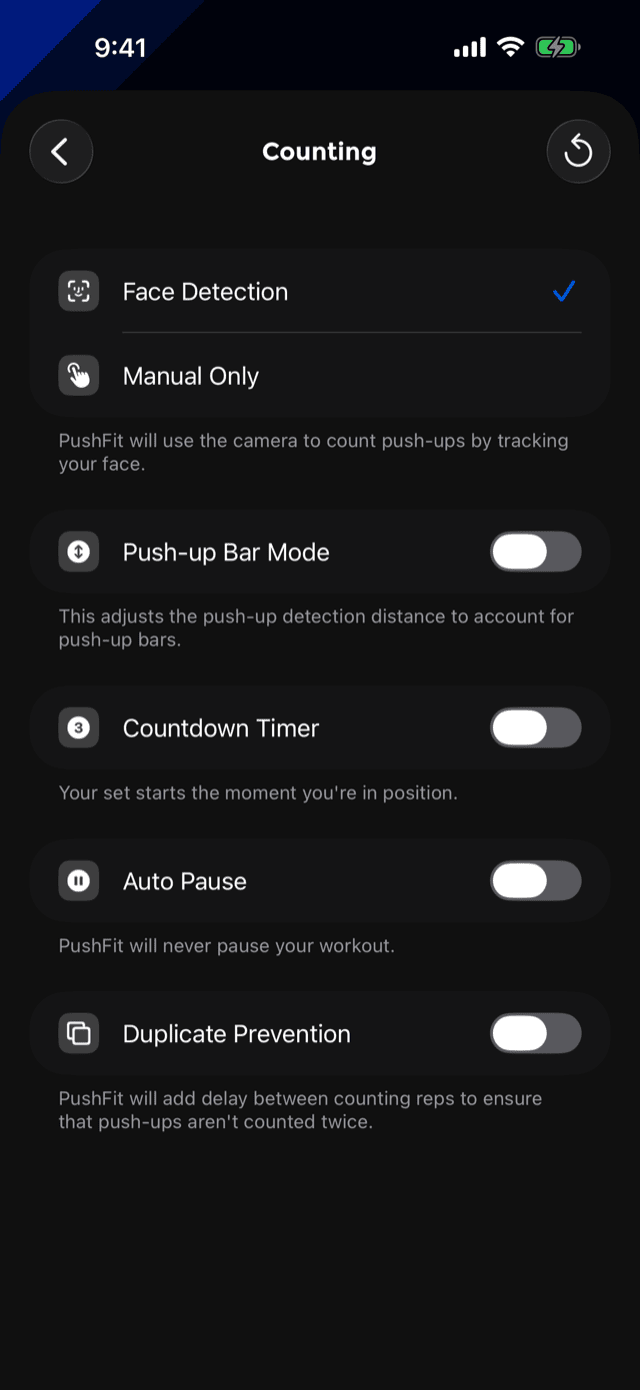
Face Detection
The default on every iPhone with Face ID, and the reason you never touch the phone during a set.
PushFit runs an ARKit face-tracking session on the front camera and measures the distance from your eyes to the phone, continuously, in centimetres. It is not looking at your form, your arms or your background. It is measuring one number and watching it move.
The two thresholds
A rep is a round trip between two distances:
The 4 cm gap between them is deliberate. If the app counted at a single distance, hovering near that line would rattle the counter up by dozens. Two separated thresholds mean you have to genuinely go down and genuinely come back up before anything is added.
Because the rep is registered on the way up, the count always lands as you press away from the floor. That is also when the haptic knocks and the number is read aloud, so the feedback matches the top of the movement rather than the bottom.
What else the camera measures
While it is counting, PushFit also keeps the lowest and highest point of every individual rep. That single extra pair of numbers is what makes several other screens possible:
- The Form chart on a workout, which draws each rep's range of motion as a band.
- Depth, your average travel per rep.
- Consistency, how alike your reps were.
Workouts counted by tapping have no range data, so those charts and tiles are simply left out rather than filled with a guess.
Nothing is recorded and nothing is sent. The camera feed is used to derive one distance and is never written to disk, never uploaded, and never shown to anyone. There is no photo, no video and no face data leaving your iPhone. iOS will ask for camera permission the first time; if you decline, PushFit falls back to tapping.
When it loses your face
If the camera stops seeing you mid-set, counting stops with it. A small icon in the corner would be no use at all to somebody face down over the counter, so the app says it where you are already looking.
The counter itself becomes the camera. The disc you are looking at turns into the live front-camera view so you can see what the app can see and shift back into frame, with the ring around it acting as the tracking light. It is held back behind the count so the number stays readable.
Two deliberate details:
- It only appears when you are genuinely lost, after roughly a second and a half. Your face passes out of range at the bottom of every rep, and a preview that flashed up mid-set would be worse than useless.
- It leaves instantly the moment you are found again, and it never appears while you are resting.
VoiceOver says the same thing out loud: “Face not detected. Push-ups are not being counted.”
How to lie down
- Phone flat on the floor, screen up, roughly under your chest or head.
- The top of the phone, where the camera is, points toward you.
- Your face should end up over the phone at the bottom of the rep. It does not have to touch it.
- Enough light to see your face. A pitch-dark room defeats it in the same way it defeats Face ID.
Push-up Bar Mode
Push-up bars lift you off the floor, so at the bottom of a rep your face is still further from the phone than the 25 cm the app is waiting for. Left alone, the counter simply never fires.
Push-up Bar Mode moves both thresholds out by about 10 cm (10.4 cm precisely, roughly the height of a standard bar), so down becomes ~35 cm and up becomes ~39 cm. Everything else behaves the same.
Turn it on if you use bars, handles, or anything else that raises your starting height. Turn it off again when you go back to the floor, or the app will be waiting for a depth you no longer reach.
Manual Only, and tapping anyway
Choose Manual Only and the camera never runs. Each tap on the big counter is one rep. It is the right choice on an iPhone without face tracking, for counting someone else's set, or for anyone who would simply rather tap.
The counter is always tappable, whichever method you are on. If the camera misses one, tap the circle and it goes in. There is no separate "add a rep" control to find mid-set.
To put a whole session in after the fact instead, use manual entry from the calendar, which takes a date, a time and a count.
The three toggles
| Setting | Default | What it does |
|---|---|---|
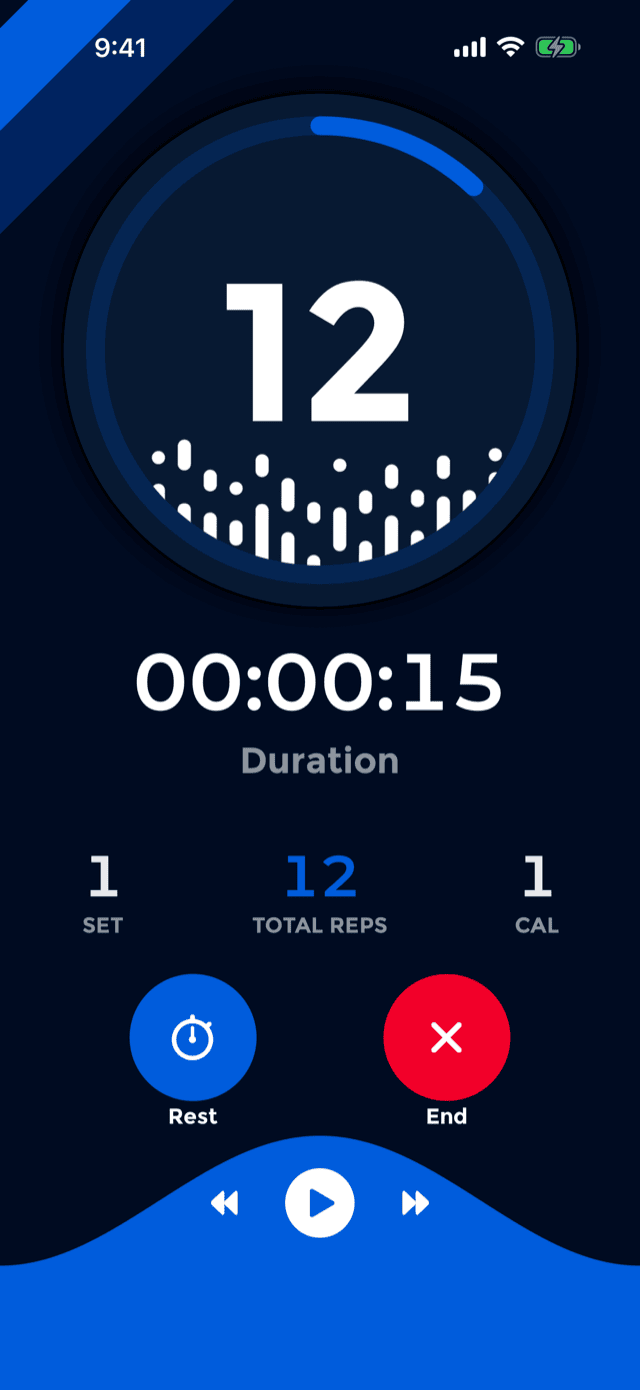
| Countdown Timer | On | Counts 3–2–1 before each set, so you have time to get into position after pressing start. Switched off, the set begins the moment you are in position. |
| Auto Pause | On | After ten seconds with no reps, the workout pauses itself and the rest screen appears. This is how a set ends without touching anything: stop pushing, and the app closes the set and starts resting. Off means the workout never pauses on its own. |
| Duplicate Prevention | Off | Adds a short enforced delay between counted reps so a single push-up can never register twice. Worth turning on if your count sometimes runs ahead of you; leave it off if you do genuinely fast reps, because it will drop some of them. |
The countdown
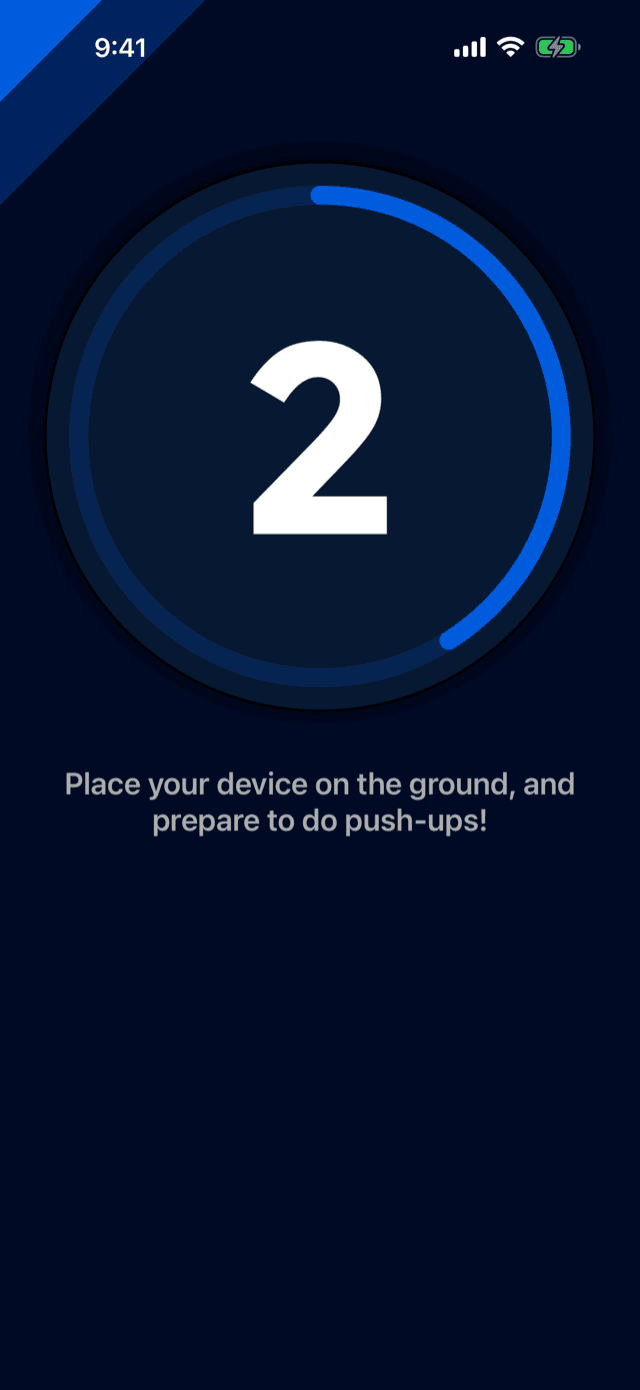
Pressing the circle does not start counting immediately. The screen fills with 3, 2, 1 while you get down, and the first rep is only looked for afterwards. The same countdown runs before every subsequent set, not just the first, so coming back from a rest never costs you a rep.
It runs on the Apple Watch too, with its own switch in the watch app's settings.
Counting on the wrist
The Apple Watch counts differently, because the camera is not there. It watches the angle of your forearm against gravity and fires on the quick upward swing at the top of a rep, with a sensitivity setting of Low, Medium or High. That work is described in full in the Apple Watch chapter.
If it is not counting
In order, the things that actually cause this:
- You are not going far enough. Your face has to cross 25 cm going down and 29 cm coming up. Shallow reps, or a phone placed out to the side rather than under you, never cross both.
- You are on push-up bars without Bar Mode. The single most common cause of a counter that never moves at all.
- The camera cannot see you. Too dark, phone face down, or something over the top of the screen.
- Camera permission was declined. With no camera there is nothing to count, so the workout screen carries a standing Camera Access Denied warning for as long as it is true. Tapping it opens PushFit's own page in iOS Settings, where the camera switch is. It stays on the screen for as long as the problem does, rather than appearing once as an alert you would have dismissed before the phone reached the floor.
- The method is set to Manual Only. Check SettingsCounting; it will say which method is active.
And if it counts too much: turn on Duplicate Prevention, and check that nothing else is moving in and out of frame near the phone.
A miscount is not permanent. Every set can be corrected afterwards from the calendar: open the day, hold the set, and edit the reps or delete it. Your totals, your goals and Apple Health are all rewritten to match.