Chapter 04
Calendar & statistics
Every rep PushFit has ever counted carries a timestamp, and most of them carry a depth. This is where all of that is given back to you: a year you can scroll, a workout you can scrub through, and thirteen numbers that each explain themselves.
The calendar
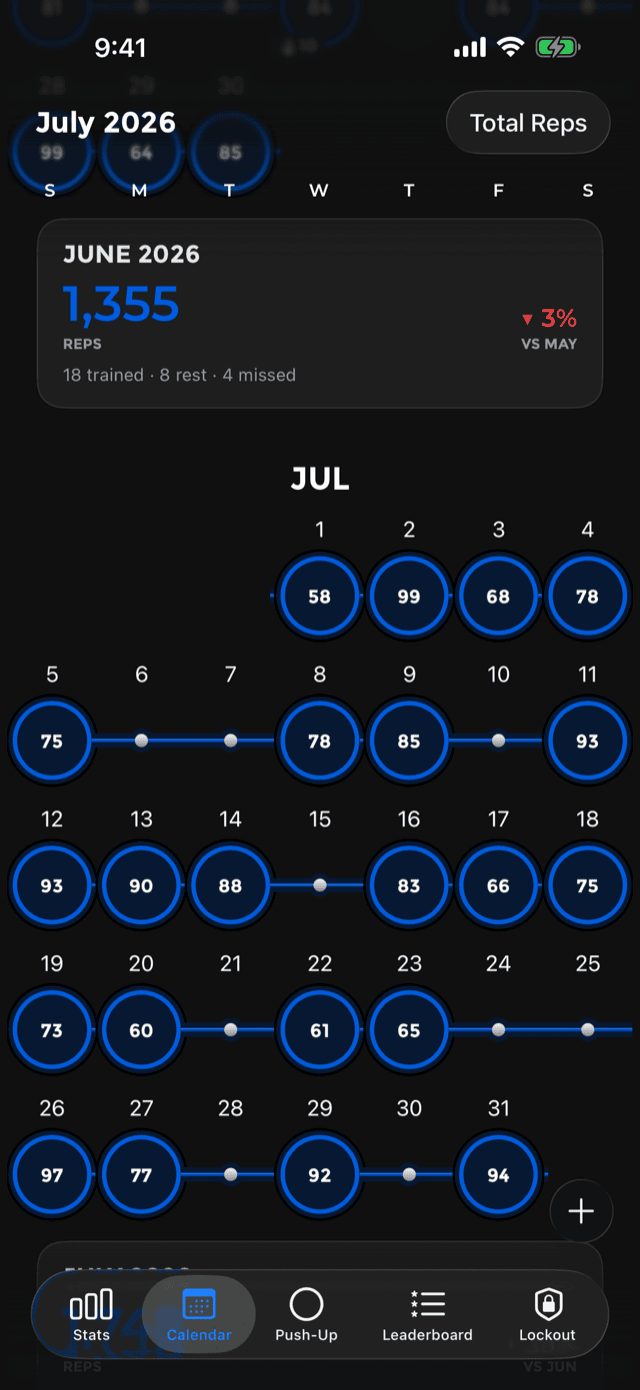
One continuous scroll, from your first ever workout to today. Months are not pages you flip; they run into each other, and the grid opens on today.
Each day is a circle. A filled ring means you trained, and the number inside is what the ring is showing:
Switch between them with the pill in the top corner. The choice sticks.
The button over the grid adds push-ups by hand, and tapping any day opens it.
The chain, and what a rest day looks like
Look between the rings. A thin strand runs from day to day, and that strand is your streak drawn out in full. It is the same idea as the number on the home screen, except here you can see exactly where it held and where it broke.
A rest day is drawn plainly and never congratulated: the app states the fact, it does not applaud you for not training. Open one and it answers the question you came with in two lines, Rest day. Your streak kept going., plus a warning, only when it is true, that this was your last one.
A chain has to end on effort. Rest days that were never followed by another workout were not recovery, they were the streak running out, so PushFit closes those chains rather than leaving a strand trailing into an empty week.
The card that closes a month
In the gap the grid already leaves before the next month begins, a finished month gets a small card. Three things only:
- Whose month it is, and how it compares with the month before as a percentage.
- How big it was, in total reps.
- How it split: days trained, days rested, and days missed. The recovery model, stated in numbers. The missed figure is left out entirely when it is zero.
Best day and longest run already live in Statistics, so the card does not repeat them.
Day detail
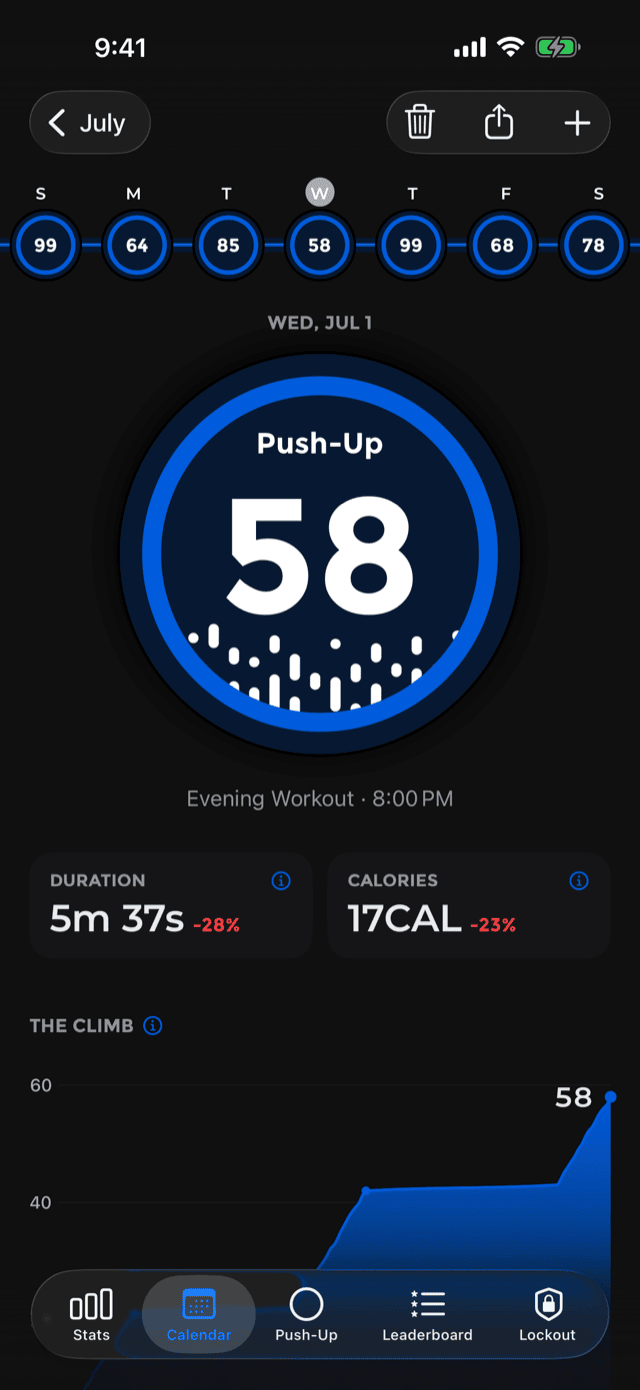
Tapping a day does not push a new screen so much as grow the one circle you tapped into the page, which is why the transition reads as opening a day rather than going somewhere.
At the top: the day's total inside a ring, and under it one line of plain language about the day. That line is chosen from what is actually true:
- Your first workout.
- Your best day ever.
- Your best Saturday in 8 weeks.
- 12 more than usual.
- 8 more to hit your goal. Today only, since today is the only day whose number can still change.
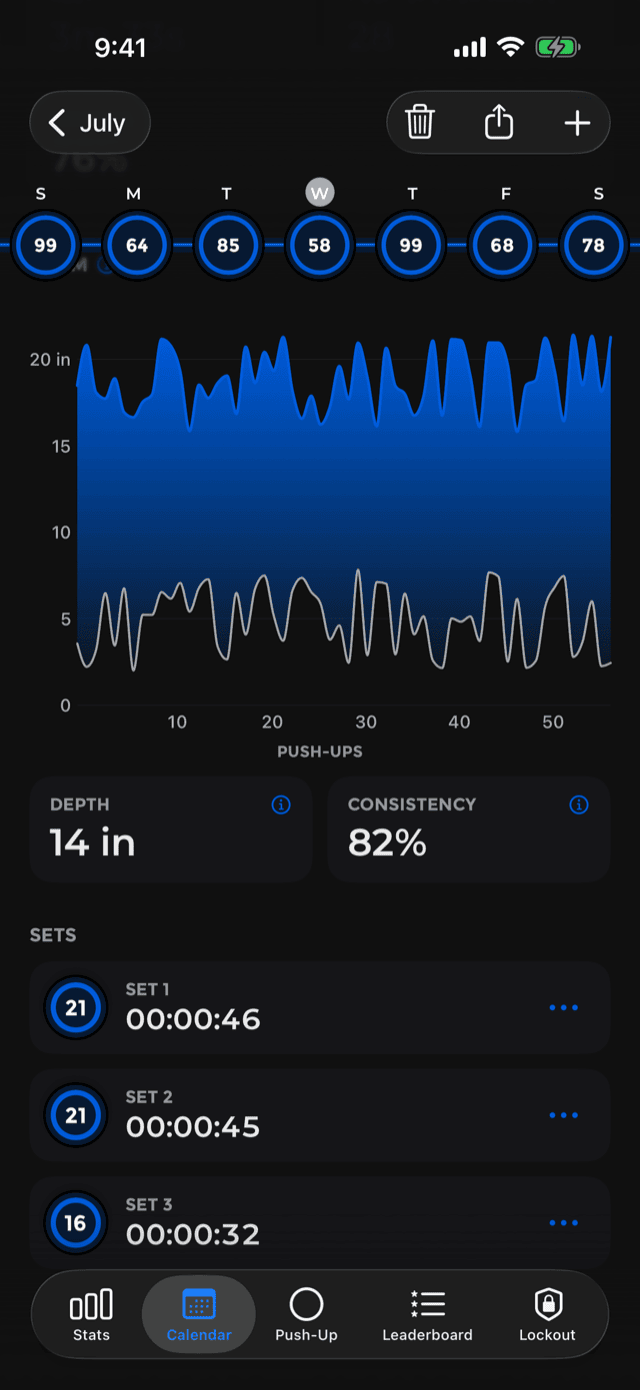
A week strip across the top moves between neighbouring days without going back to the grid, and the navigation bar carries delete, share and add.
Days with more than one workout list them as cards, each named by the time of day it started (Morning, Afternoon, Evening or Night Workout), and each opens its own detail page. A busy day is dressed exactly like a quiet one.
The charts
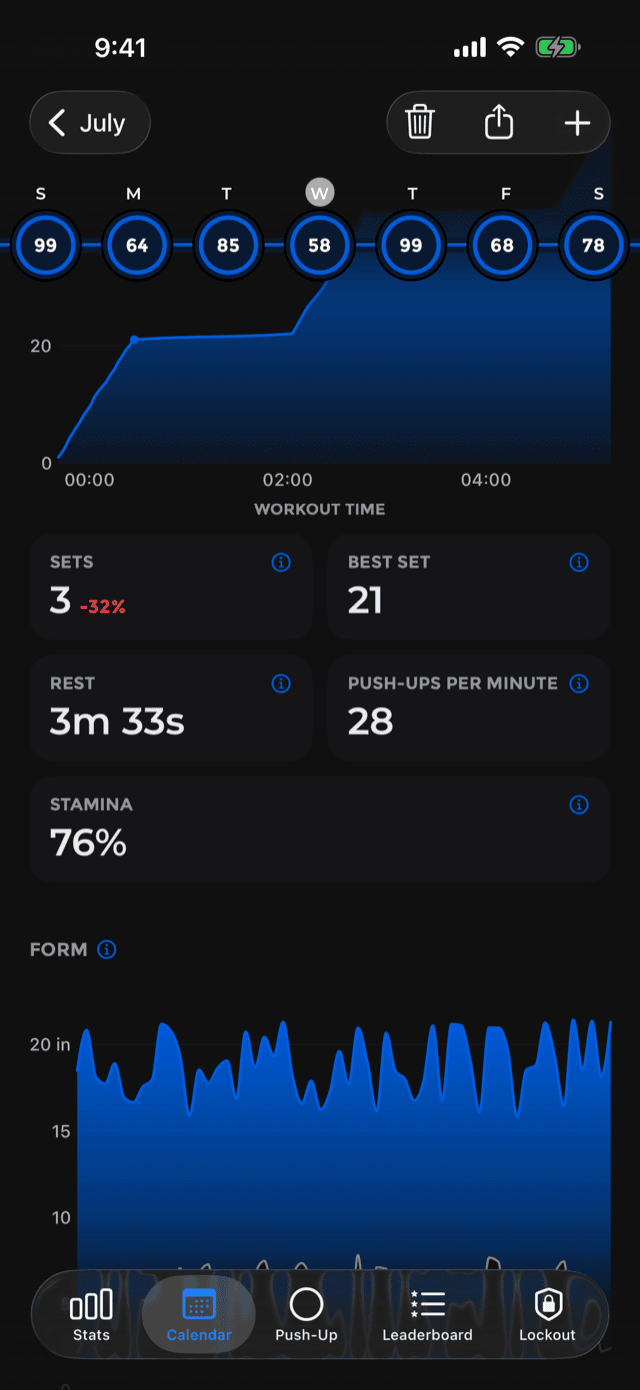
Up to three charts per workout, each with an info button that explains it in one sentence, and each scrubbable: drag across and a callout follows your finger.
The Climb
Your running total, climbing over the workout. Flat stretches are rests, and each dot closes a set. It is the fastest way to see the shape of a session: whether you went out hard and faded, or held a rhythm the whole way.
Form
One band per rep, drawn from the range of motion the front camera measured: the top edge is your highest point, the bottom edge your lowest. A workout where the band stays even is a workout where every rep went the same distance. A band that creeps upward from the left is fatigue, visible.
This chart only exists for workouts the camera counted. Sets counted by tapping carry no range, and the chart is left out rather than faked.
Heart Rate
If an Apple Watch was recording, a third chart draws heart rate as vertical bars, each one the lowest to the highest beat measured in that slice of time. It runs on the same clock as The Climb, so the two can be read against each other and the dips line up with your rests. Heart rate is always drawn in red, on every theme, because it is the one number on the page you did not produce.
Every stat, explained
The tiles between the charts are the workout's numbers. Tap any tile and PushFit explains where the number came from, in plain language, and says so when a figure is an estimate rather than a measurement. Tiles that are not true for a given workout are simply left out.
| Stat | What it is |
|---|---|
| Sets | How many sets the workout had. A new one begins whenever you rest. |
| Best Set | The most reps in a single set. Only shown when there was more than one set, since with one it would simply repeat your total. |
| Duration | First push-up to last, rests included. |
| Rest | The duration minus the time inside your sets: your rests and any pause before you finished. |
| Calories | An estimate, not a measurement, unless an Apple Watch measured it. See how it is worked out. |
| Push-Ups per Minute | Your speed while actually moving: reps divided by the time inside your sets, so resting does not count against you. Hidden under 15 seconds of movement, where the figure would be guesswork. |
| Stamina | Your last set against your first, in reps. 100% means you finished as strong as you started; above 100% means stronger. Needs at least two sets. |
| Depth | How far you travelled on a typical rep, measured by the front camera: highest point to lowest, averaged over every rep. |
| Consistency | How alike your reps were. Each rep's depth is judged as a share of your average for the workout, so the score does not change with your height or your units. 100% would be every rep exactly as deep as the last. |
| Avg / Max Heart Rate | From the readings Apple Watch recorded between your first push-up and your last. |
| Recovery | How far your heart rate fell in the minute after your last rep: the highest reading in your closing 30 seconds minus the lowest in the minute after. A bigger drop generally points to better cardiovascular fitness. Only appears when the watch kept recording after you stopped. |
| Daily Goal | The day's push-ups against the goal you set. |
Fixing a set, and deleting things
Under the charts every set is listed as a card with its rep ring, its number and how long it took. Press and hold one:
- Edit Reps, to type what that set really was. Miscounts are corrected here.
- Delete Set, to remove it. If it is the workout's only set, PushFit tells you plainly that deleting it deletes the whole workout.
Either way the change flows everywhere: your totals, your goals, your streak, the leaderboard, and Apple Health. Health samples cannot be edited in place, so PushFit removes the stored workout and writes it again from the corrected sets, which is why the Health app never keeps quoting a number you have already fixed.
Whole workouts are deleted from the bin in the day's navigation bar, or from the menu on the celebration screen right after finishing one.
Adding push-ups by hand
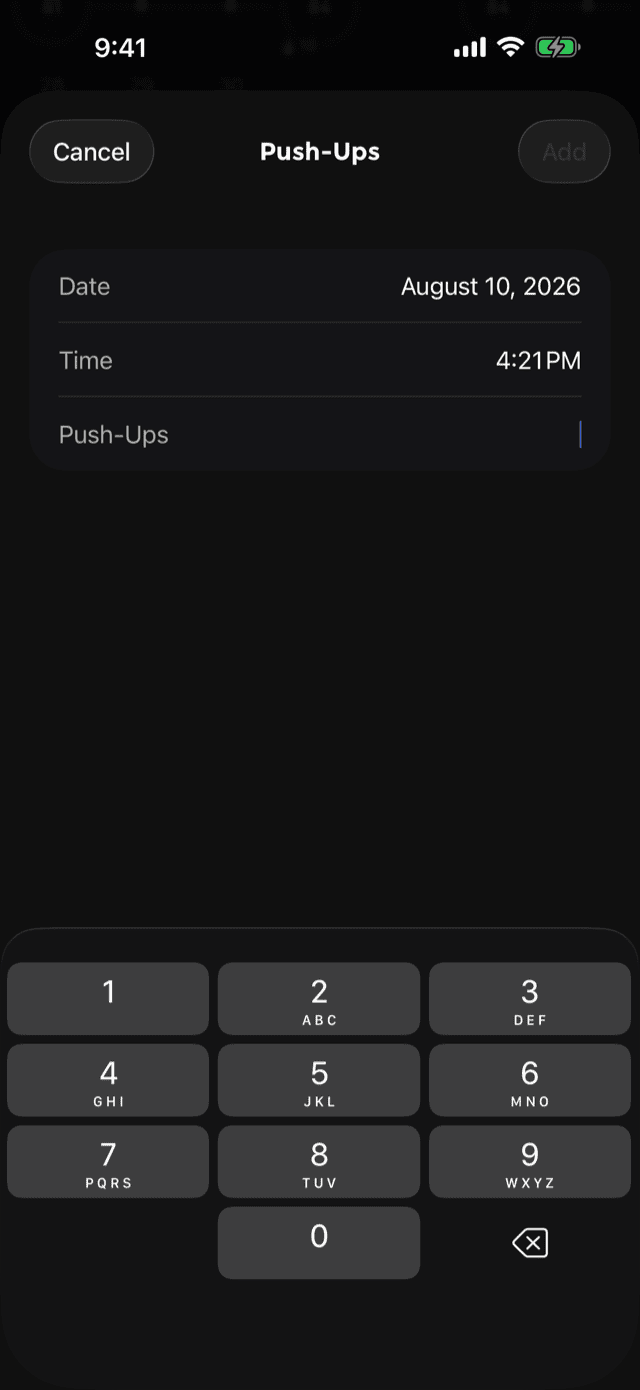
The button over the calendar, and the plus on any day, opens manual entry: a date, a time and a count. Use it for a session you did away from your phone, or for a set someone else counted.
The rules it enforces:
- No future dates.
- A positive number, up to 1,000 in one entry.
- Not the exact start time of a workout you already have.
- Above 300, PushFit warns that only 300 will count toward the leaderboards. It still records the full number for you; the cap exists so the global board is not decided by typing.
Manually entered workouts are marked as such, and are left out of the per-set chart in Statistics because they do not describe real sets.
Statistics
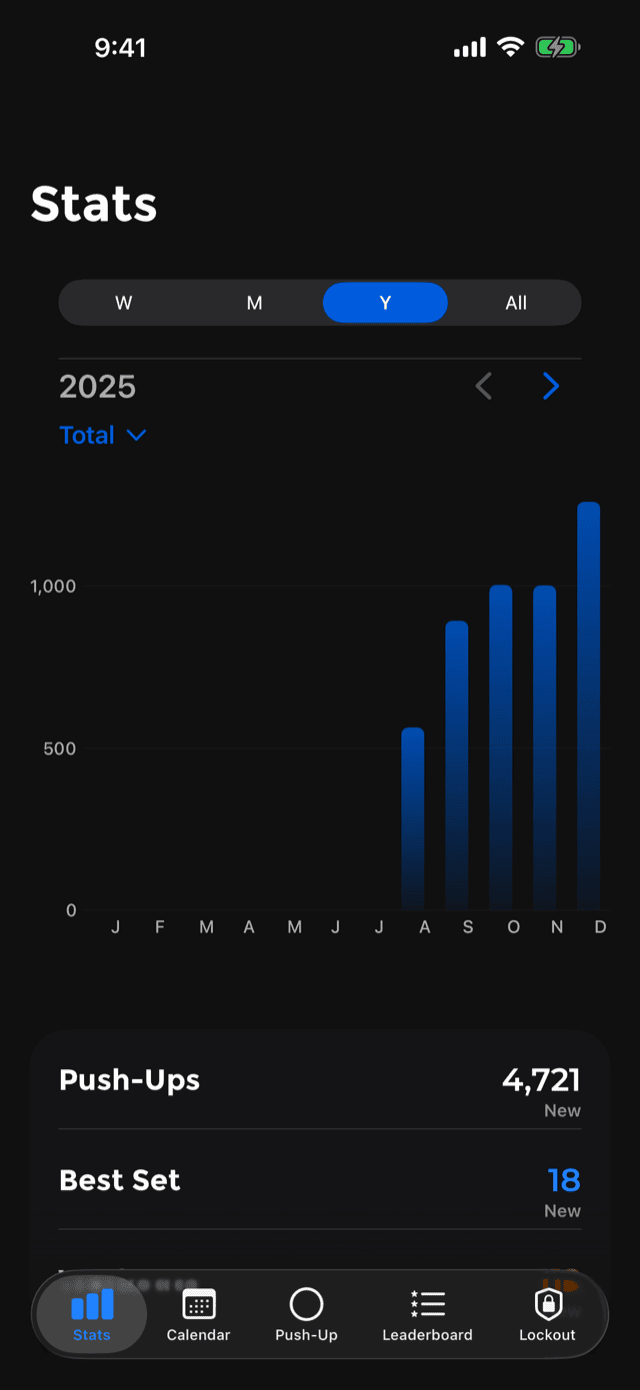
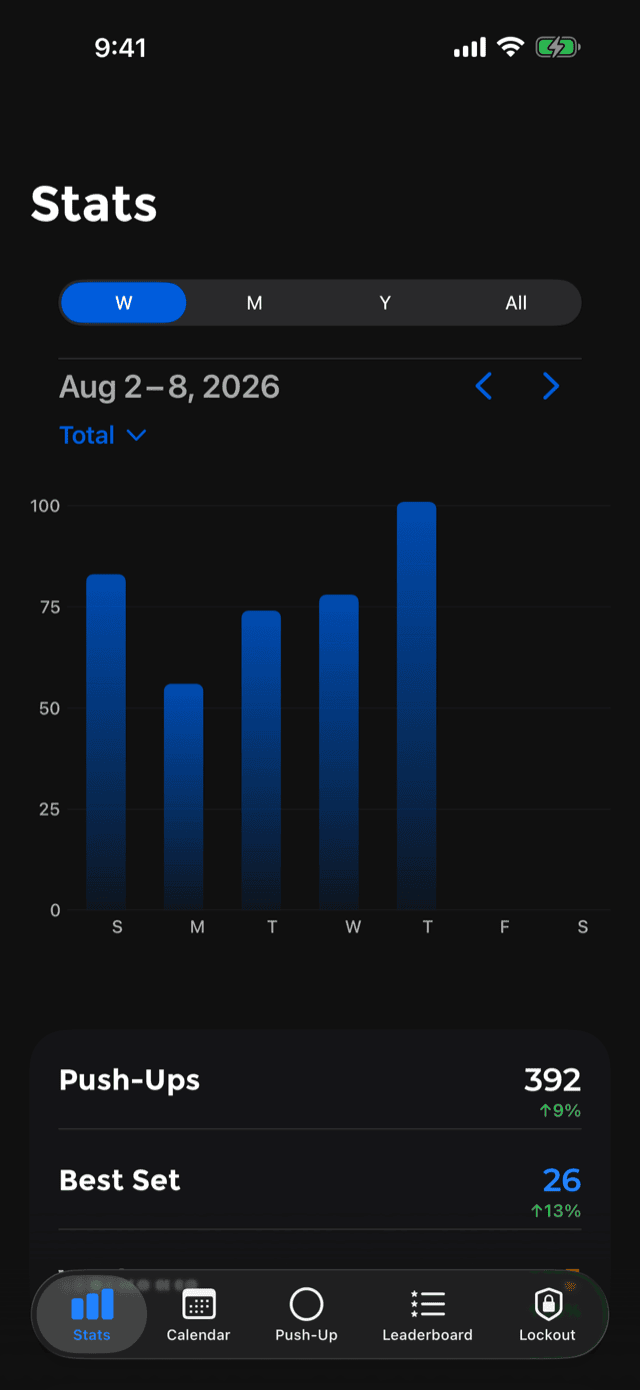
The first tab. A chart on top, a list of records underneath, and a scope control offering W / M / Y / All. Chevrons either side of the date step back and forward a period at a time, so you can walk through your whole history a week or a year at a time.
Two charts share the space, chosen from the menu above:
The records
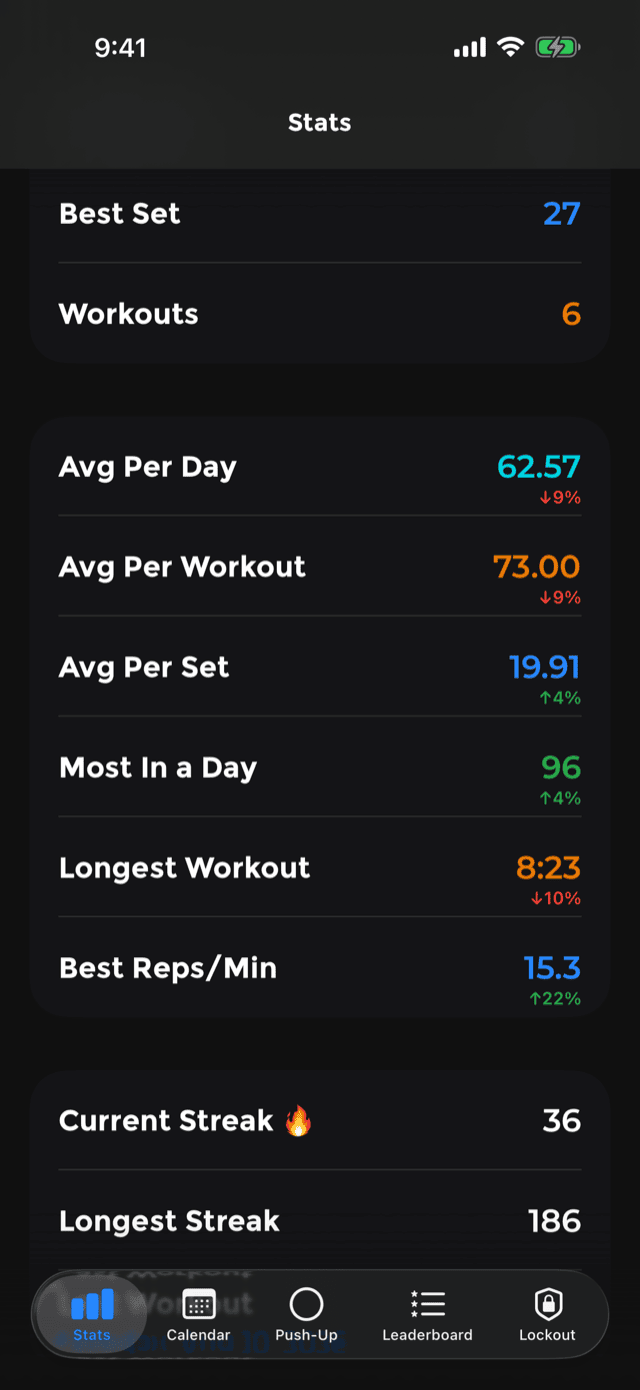
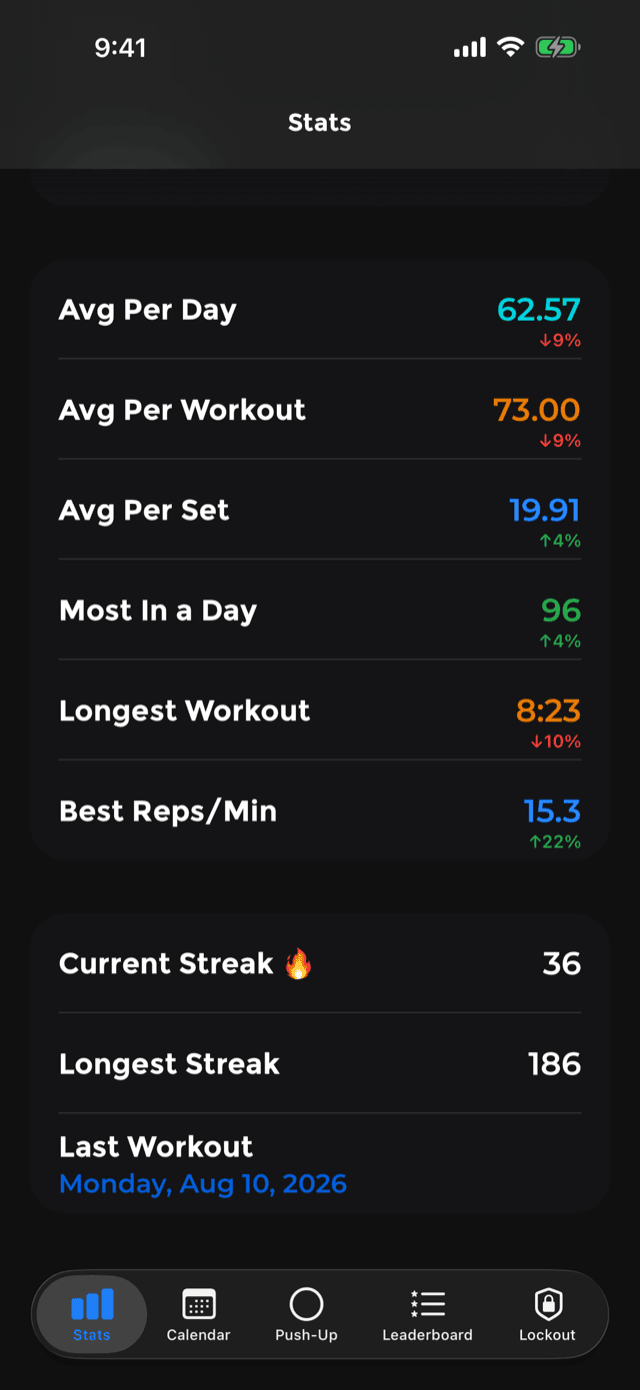
Under the chart, every headline number for the chosen period, most with a coloured percentage showing how it compares with your recent average. A stat with nothing to compare against reads New rather than an invented zero.
- Push-Ups, Best Set, Workouts
- Avg Per Day, Avg Per Workout, Avg Per Set
- Most In a Day, Longest Workout, Best Reps/Min
- Current Streak, Longest Streak, Last Workout
Percentages are green when up and red when down, and that is the only place in PushFit those two colours are used that way.
The full calendar and the statistics screen are PushFit Pro. In the free app both tabs show a preview with your real lifetime total on it, and the workouts themselves keep being recorded the whole time, so nothing is lost while you decide. More on Free and Pro.