Chapter 05
Apple Watch
A full workout app on the wrist that counts push-ups without the phone, plus five complications so the number is on your watch face before you open anything.
Starting a workout
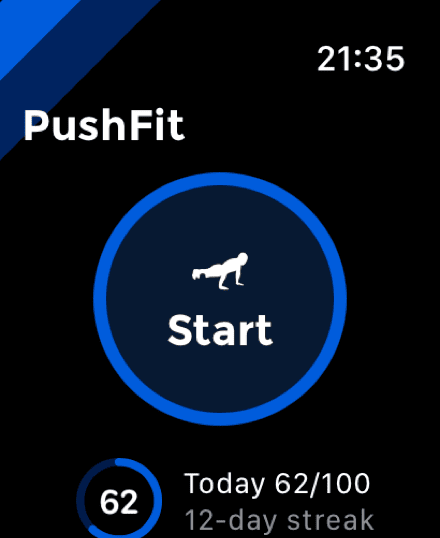
The watch app opens on the same idea as the phone: one dark circle with a themed ring and the push-up figure inside it, marked Start.
Under it, today against your goal and your current streak, both pushed over from the phone, so the app is worth opening even when you are not about to train.
Two ways to begin:
- From the wrist. Press Start. If the countdown is on, the watch counts 3–2–1 while you get down.
- From the phone. Starting a workout on iPhone brings the watch app up on its own and hands it the start time, so both ends are on the same clock.
Either way a real HealthKit workout session runs on the watch, which is what keeps the screen alive, credits your rings, and records heart rate properly.
Counting from the wrist
There is no camera down there, so the watch counts a completely different way: it watches the angle of your forearm.
Two things had to be true to make this work, and both are the opposite of the obvious approach:
The wrist barely moves
Your hands are planted, so the watch sits near the pivot of the whole movement. Measured acceleration during real push-ups is almost nothing. What actually changes is the orientation of your forearm, so PushFit tracks the angle between gravity and a slowly-learned resting posture. Being an angle rather than an axis, it behaves the same on either wrist and at any watch rotation.
A rep is a fast event
Reps arrive every few seconds, but the movement itself is a swing of about 10° completed in roughly two-thirds of a second, followed by a long near-flat hold. Detectors built around the gap between reps smear that swing away and miss it entirely, so PushFit watches for the quick upward swing instead, counting a rep once the tilt has climbed about eight degrees.
There is also a gate on how much your wrist is travelling: if you are walking or standing up rather than planted, reps are not counted.
Sensitivity in the watch settings tunes how big that swing has to be. Higher counts shallower or faster reps; lower avoids false counts and asks for deliberate, full-range push-ups. And whatever it decides, Count Rep on the controls page adds one by hand, as does turning the Digital Crown.
The watch and the iPhone are two separate ways of counting the same exercise, not one system. Use whichever suits the session: the phone on the floor is the more precise of the two and is the only one that measures depth, and the watch is the one that works when the phone is in another room.
The live screen
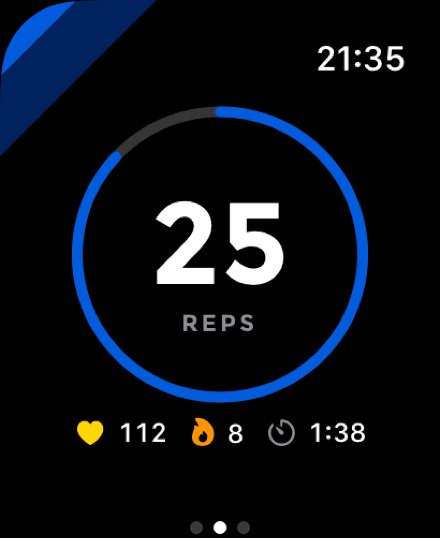
This screen is designed around when the watch is actually looked at. During a set your wrist is planted and the screen faces the floor: the haptic per rep is the feedback, not the display. The glance happens between sets, arm up and out of breath, and the question is one of two things.
So there is a single hero number that changes meaning with what you are doing: your reps while you are working, the rest clock once you stop. The ring around the edge carries daily-goal progress in the space a round screen otherwise wastes, and the count pops on every rep so a mid-set glance confirms the buzz was real.
Underneath, a quiet band of vitals: heart rate, calories and the workout clock. Heart rate is tinted by zone, blue then green, yellow, orange and red as you climb, so effort is legible without reading the number.
Swipe left for controls: End, Water Lock, and Count Rep. Swipe right for the system now-playing screen. Metrics is the page you land on.
Rest
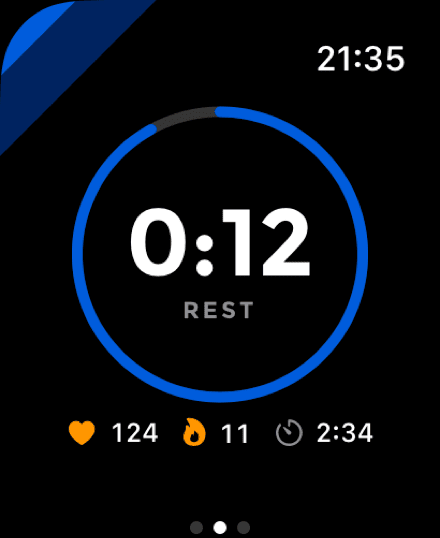
Stop pushing for a few seconds and the hero number becomes the rest clock, without you pressing anything. It counts down when you have a rest timer set on the phone, and up when you do not.
The length comes from the same Rest Timer setting as the phone, and changing it there updates the watch immediately rather than waiting for the next saved workout.
When it reaches zero the watch taps your wrist. That is the whole interaction: nothing to press to start resting, and nothing to press to stop.
The voice coach
Switched on, the watch speaks your count as you go: every rep below ten, then every fifth. Frequent enough to trust, sparse enough not to nag. It also announces the moment your daily goal is reached, mid-set.
Numbers are spoken in your language by the system speech synthesiser, so this works in every language PushFit ships in.
The summary
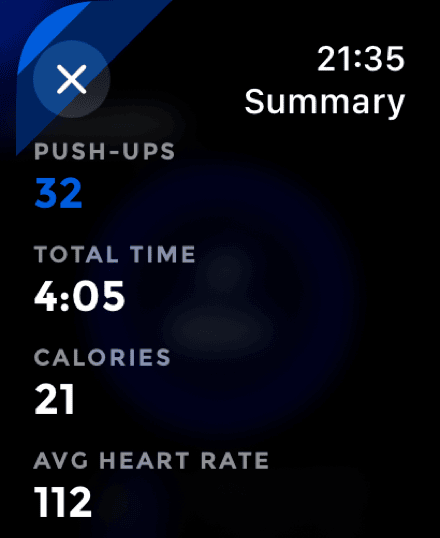
Ending a workout shows push-ups, total time, calories and, when the watch measured them, average and maximum heart rate.
Only one number on the page wears your theme colour: the reps. Everything else is quiet white, because the reps are the thing you did and the rest is what the sensors saw.
The workout is saved to Health from the wrist, with the watch's measured heart rate and energy rather than the phone's estimate, and it is sent across to the iPhone so it appears in your calendar, your streak and your totals like any other.
One workout, one Health record. When both devices are running the same session, the wrist owns the Health workout and the phone discards its copy. That is why an edit or a deletion on the phone can always reach it, and why a single set of push-ups never appears twice in Health.
The week
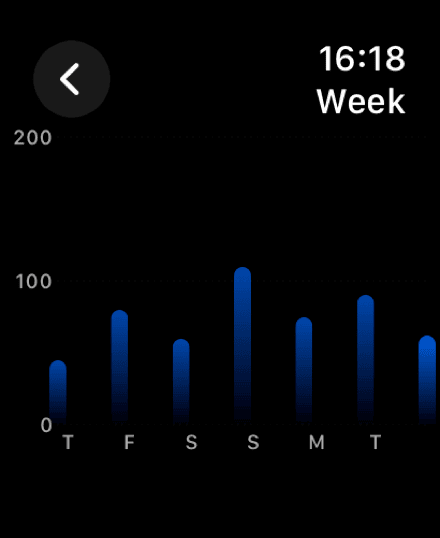
A Week screen off the start page draws your trailing seven days as a bar chart with the week's total above it. Enough to answer "have I done enough this week" without reaching for a phone.
It carries a full Audio Graph, so a VoiceOver user can play the week as sound rather than hear seven numbers read out.
Five complications
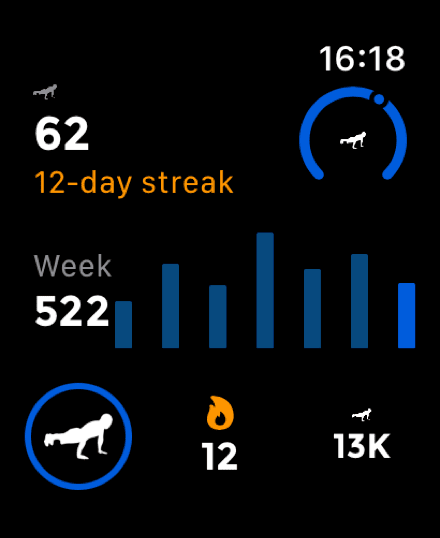
Add these from the watch face editor. All of them take your theme colour, so the face matches the app.
They refresh whenever the phone pushes fresh numbers across, and again at midnight so a complication never carries yesterday's count into a new day. When your goal is unmet, PushFit tells watchOS the complication is more relevant, which is how it earns a place in the Smart Stack.
Reminders on your wrist
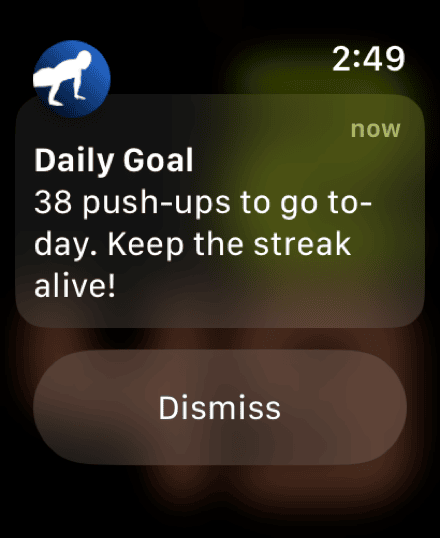
Any reminder you set on the phone arrives on the watch as a proper long-look notification, with your goal and how many push-ups are left in it rather than a generic nudge.
Watch settings
| Setting | What it does |
|---|---|
| Sensitivity | Low, Medium or High. Higher counts shallower reps; lower avoids false counts. |
| Flip on Wrist Turn | Turning your wrist over mid-workout flips the screen and wakes it, for people who train with the watch facing the floor. |
| Countdown | Counts down from three before the workout starts. |
| Voice Coach | Speaks your rep count and milestones. |
| Auto-count | On the start screen rather than in settings. Off means every rep comes from Count Rep or the crown. |
Your theme colour, your daily goal, today's count, your streak and your week all come across from the iPhone automatically. There is nothing to pair and nothing to sign into.