Chapter 08 · PushFit Pro
The Lockout
Pick the apps that steal your time. They stay locked until you do your push-ups. No shortcuts, just reps. And PushFit never learns which apps you chose.
How it works
Open a blocked app and you get a PushFit lock screen instead of the app. Do the push-ups, and every blocked app opens again for a while.
Choose
Pick apps, whole categories, or websites from Apple's own picker.
Meet the shield
Opening one shows the lock screen, naming the app and the number of push-ups it takes.
Do the reps
Any workout that hits your target unlocks everything for the time you set.
It closes again
When the time runs out the block comes back on its own. Nothing to remember.
The unlock is not per app. One workout opens the whole set, so the deal is with your attention rather than with any single app.
Setting it up
The Lockout has its own tab. First run shows what it does and a single button, Start The Lockout, which asks for Screen Time access and then opens Apple's app picker.
- Allow Screen Time access. iOS asks once. Blocking is done by the system, and this is what lets PushFit ask for it.
- Choose your apps. Apple's picker; pick individual apps, entire categories, or web domains.
- Set the price. How many push-ups it takes, and how long a workout buys.
- Turn on Block Distracting Apps.
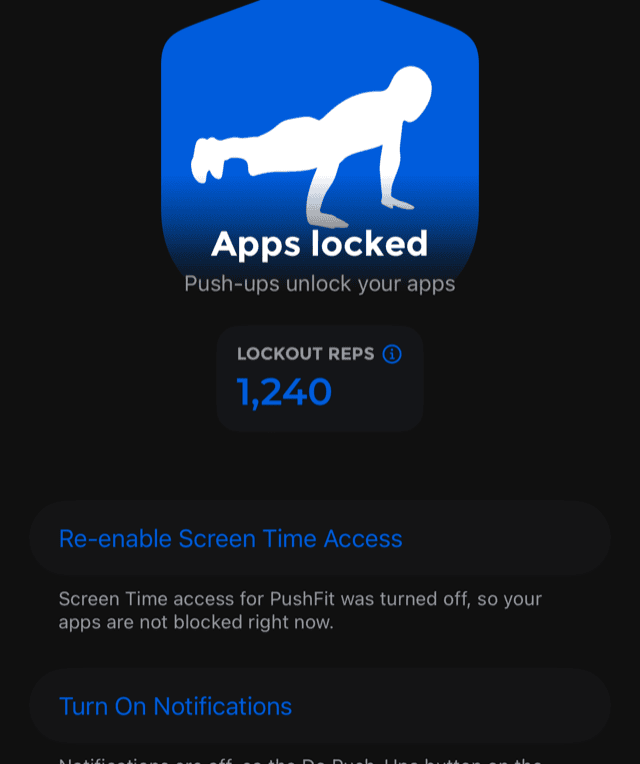
Keep notifications on for PushFit while you use this. The lock screen's Do Push-Ups button hands you over to PushFit through a notification, and with notifications off that button has no way to reach the app. The Lockout tab tells you if that has happened, and offers to fix it.
The lock screen
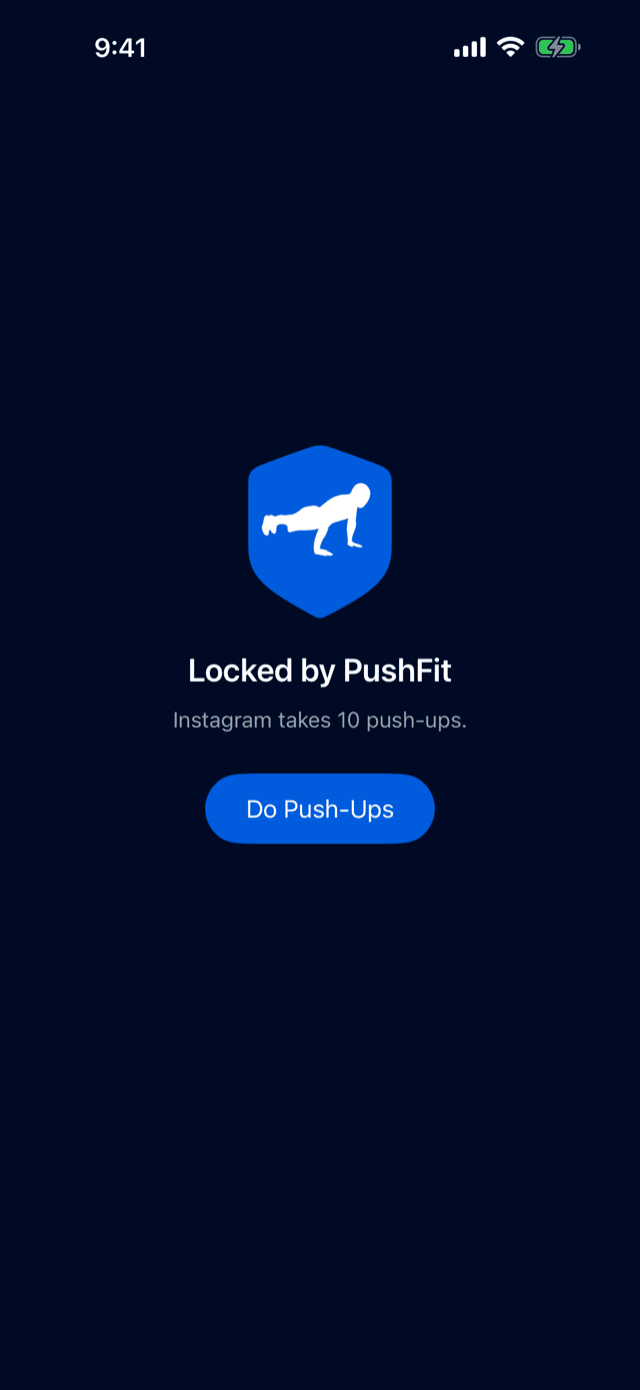
Instead of the app you get PushFit's shield, over a blurred version of whatever you were opening. It names the app and states the price plainly: Instagram takes 10 push-ups.
Come back to the same app several times in one day and the shield adds a second line saying how many times you have tried today. It states the count and stops there: no lecture, no guilt, just the number.
Do Push-Ups takes you to PushFit and straight into a workout, so there is no navigating to do while you are still holding the impulse.
Reps and time
| Setting | Default | Choices |
|---|---|---|
| Push-Ups to Unlock | 10 | 5, 10, 15, 20, 25 or 50, or type your own between 1 and 500. |
| Time Earned | 30 min | 15, 30, 45, 60 or 120 minutes, or type your own between 15 minutes and 8 hours. |
| Blocked Apps | None yet | Any mix of individual apps, categories and web domains. |
Start lower than feels impressive. Ten push-ups is a price you will actually pay at 11pm, and the point of the feature is that the deal keeps being taken.
While an unlock is running, the tab's headline changes from Apps locked to Unlocked until 4:15 PM, and the same information appears as a row on the celebration screen after the workout that earned it.
Lockout Reps
The badge on the tab counts every push-up you have ever done to open a blocked app, for as long as you have used the feature. It is the number that turns a nagging feature into a scoreboard: a few thousand reps that exist purely because an app was in the way.
They are ordinary push-ups in every other respect. They count toward your goals, your streak, your statistics and your leaderboard position exactly like any other rep.
What PushFit can and cannot see
PushFit never learns which apps you blocked. The choosing is done inside Apple's own picker, and what comes back is a set of opaque tokens the system understands and the app does not. There is no list of app names anywhere in PushFit, nothing about your choices is sent to any server, and none of it leaves your iPhone.
The blocking itself is done by Screen Time, the same system feature that powers Apple's own app limits. PushFit asks the system to shield a set of tokens; the system decides what that means.
The same is true of the attempt counter on the shield: it is a tally kept on your device against an opaque token, so that PushFit can say "you have tried three times today" without ever knowing what you tried to open.
Staying in control
This is a commitment device, not a lock you can be trapped behind. All of it can be undone at any time, by you, with no waiting period:
- Turn off Block Distracting Apps and everything opens immediately.
- Change the apps whenever you like; the shields follow.
- Revoke Screen Time access in iOS Settings and PushFit loses the ability entirely. The tab will tell you this has happened, so blocking never fails silently.
The Lockout is a PushFit Pro feature. The free app shows what it does and links to Pro. More on Free and Pro.