Chapter 11
Themes & personalising
One colour choice repaints the entire app, both widgets and watch, and the icon on your Home Screen. Then a name, a photo in the middle of the button you press, and reminders that know what you have left to do.
Seven colours
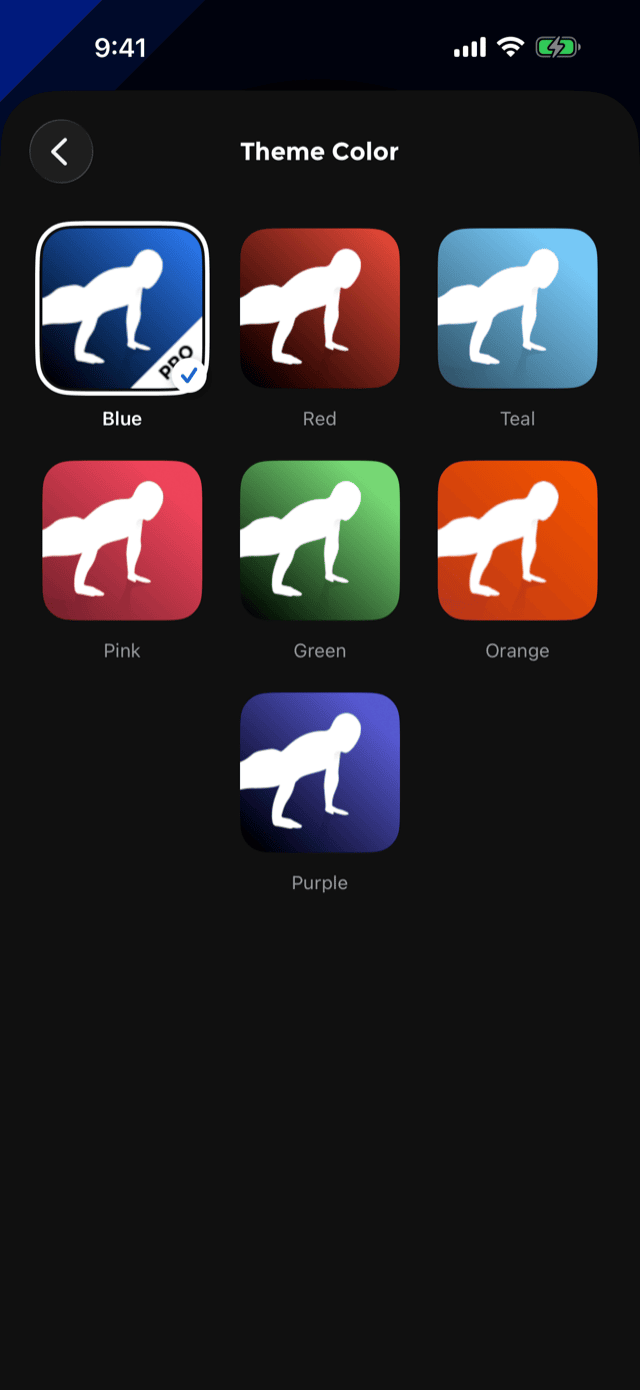
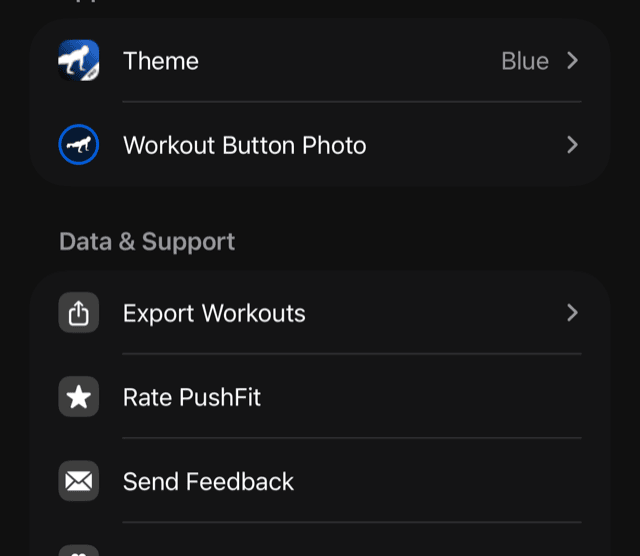
SettingsTheme holds seven colours, each shown on a copy of the app icon so you are picking the thing you will actually see, not a swatch.
- Blue
- Red
- Teal
- Pink
- Green
- Orange
- Purple
The choice is offered again on the very first run, right after your first rep, because the colour is one of the two things people want to set before anything else.
Where the colour reaches
This is not a tint on a button. The accent is what marks your effort, everywhere PushFit draws it.
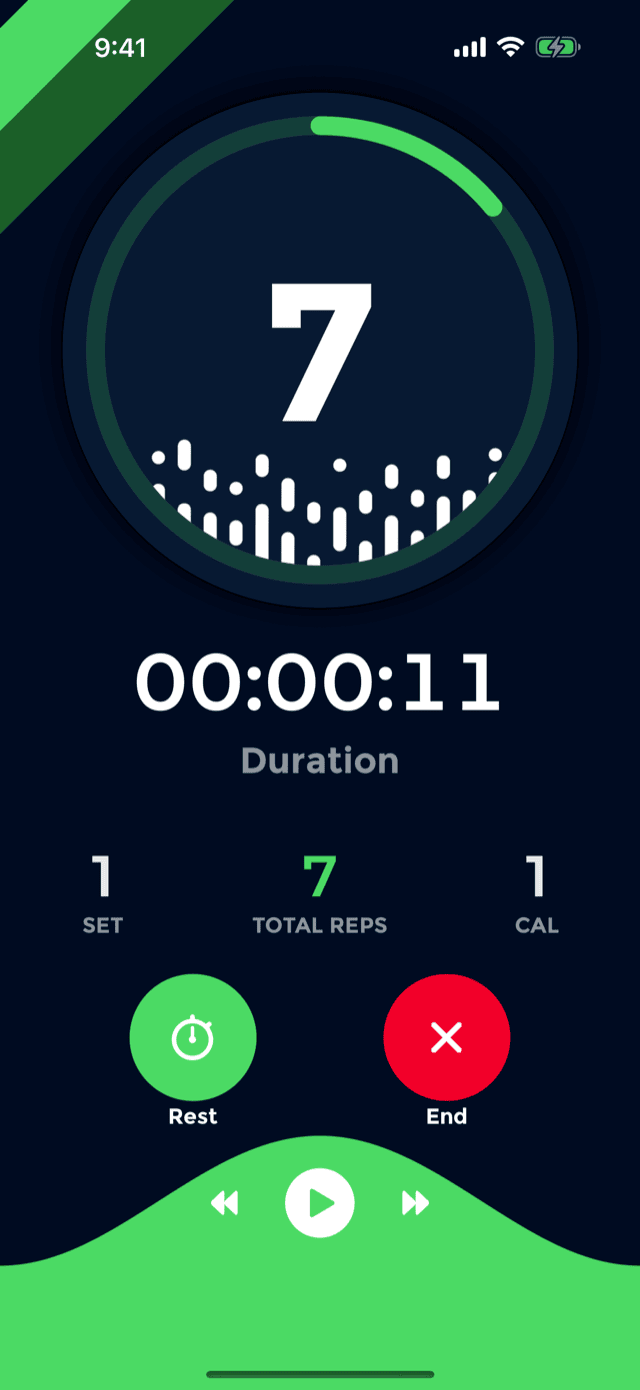
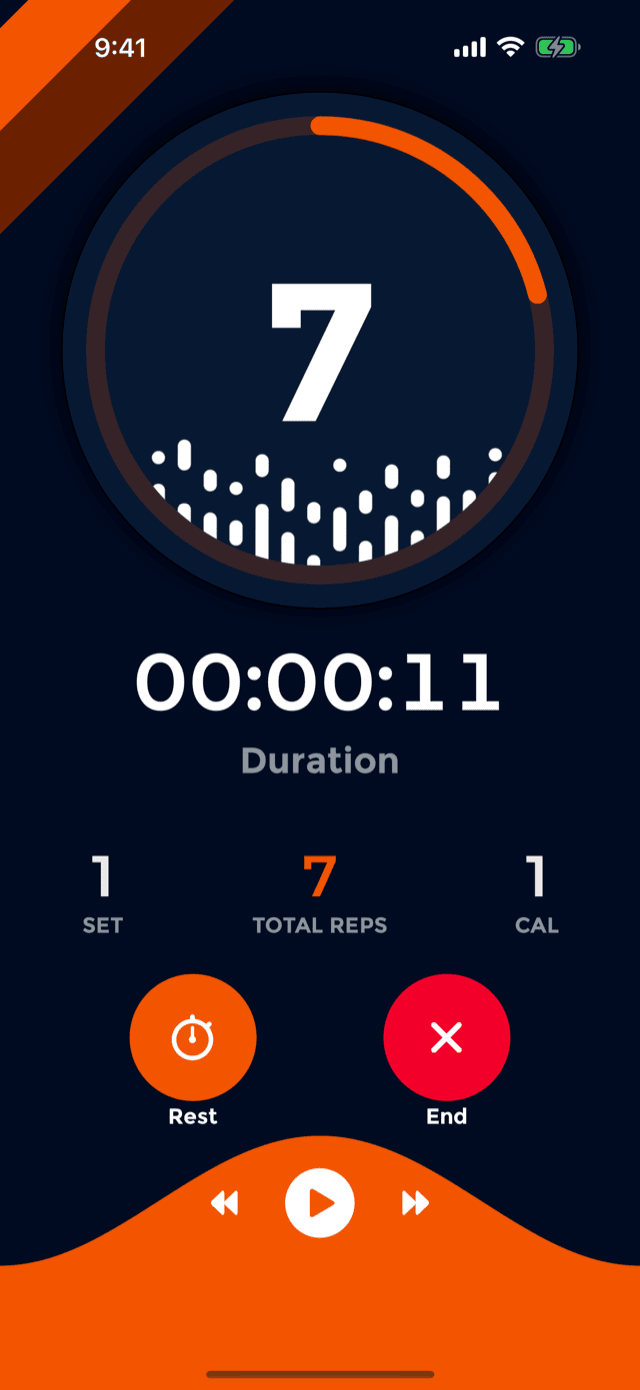
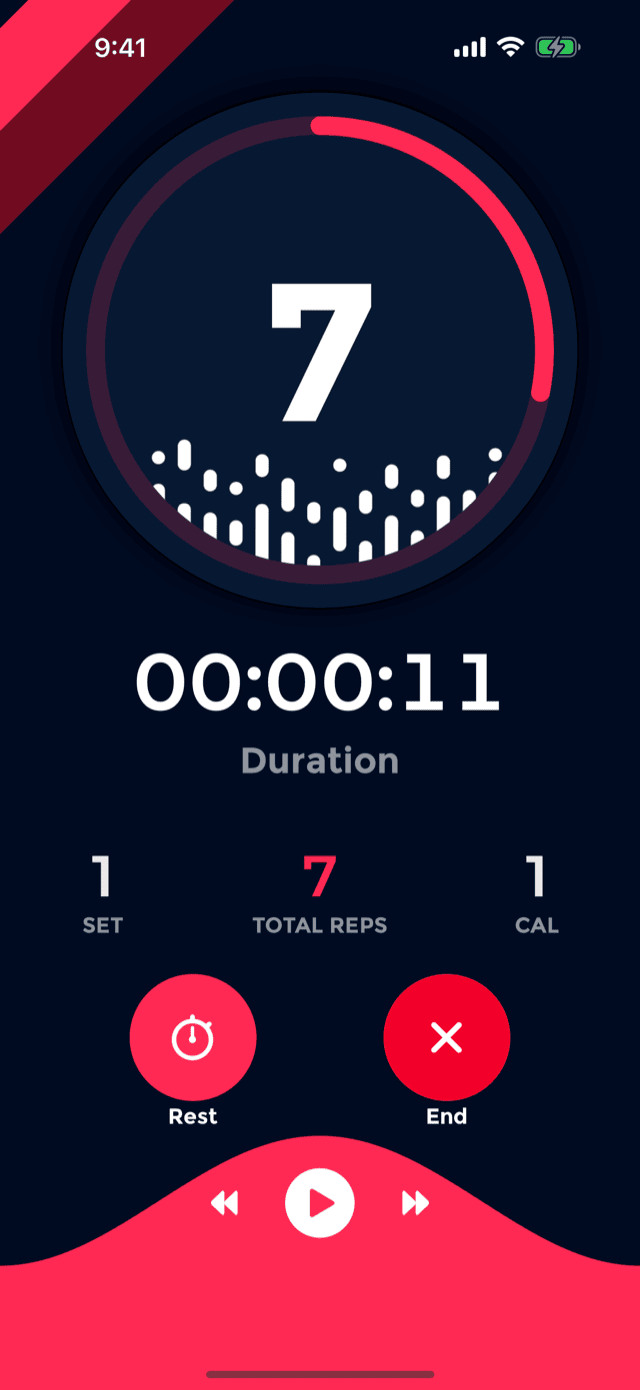
Change it once and all of this changes with it:
- The counter ring, the rep total, the wave under the music controls and the Rest button.
- Every goal ring and bar, every calendar day ring, and the chain between them.
- The charts in Statistics and on every workout.
- Every button, switch and selection in the app, including the navigation bars.
- Your Home Screen and Lock Screen widgets, and the Live Activity's background.
- The Apple Watch app and all five complications.
- The Home Screen icon.
Two colours stay put on purpose. Red means end, stop or delete, and nothing else ever wears it. Heart rate keeps its own red on every theme, because it is the one number on those screens you did not produce.
If you turn on Increase Contrast in iOS, every theme colour resolves to a high-contrast variant automatically.
The app icon follows
Choosing a colour also changes the icon on your Home Screen to match, so the app looks like itself before you open it. iOS shows its usual confirmation the first time.
There is one deliberate exception: choosing a colour during first-run onboarding sets the colour but does not swap the icon, so that a system alert does not interrupt your first thirty seconds in the app. Change it later in Settings and the icon comes with it.
Your name
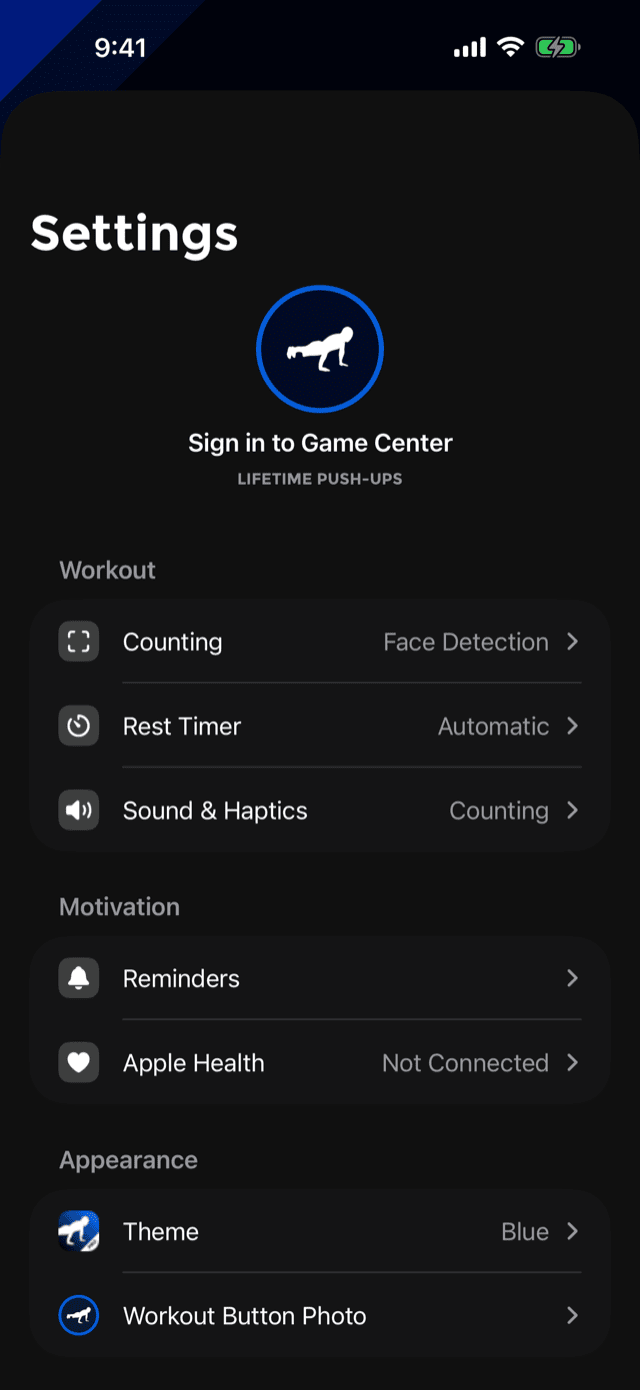
The top of Settings is your identity: your photo, your name, and your lifetime push-up total. Tap it to open a name sheet.
- Type a name and that is what friends and the leaderboard see. Your Game Center account is untouched.
- Use Game Center Name clears it and goes back to your Apple one.
- Change Photo in Game Center opens the Game Center profile card, which is where the photo actually lives. PushFit cannot change it, so it takes you to the place that can.
Signed out, the header reads Sign in to Game Center and tapping it does exactly that.
The photo in the workout button
SettingsWorkout Button Photo puts a picture of your choosing inside the big circle you press to start. Choose an existing photo, move and scale it in a circular crop, or remove it later.
People use it for a physique photo, a goal, or somebody they are doing this for. It shows on the home screen and behind the counter during a workout.
Reminders
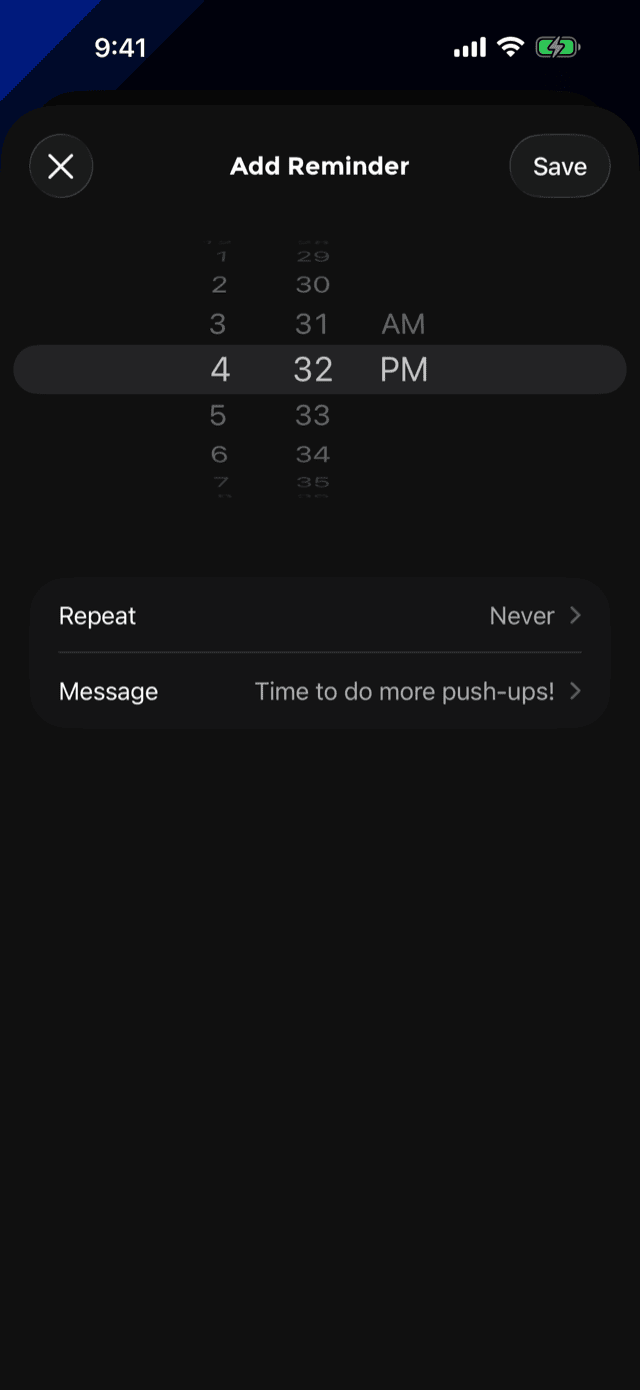
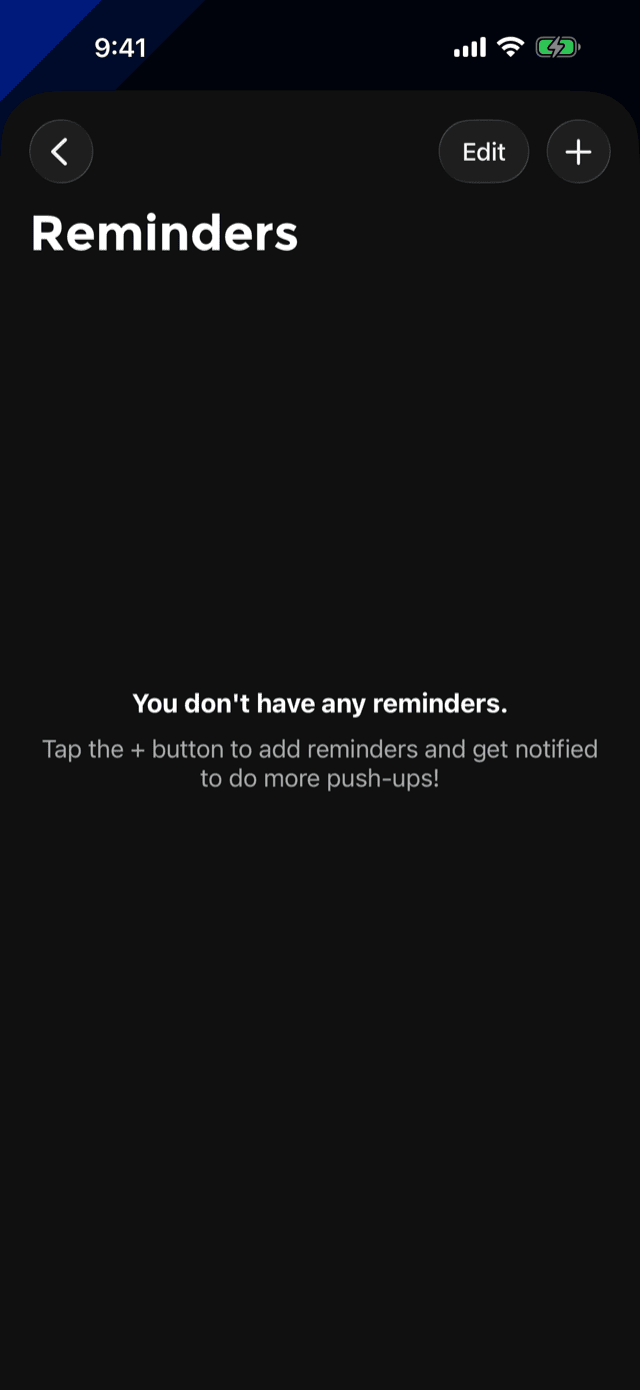
SettingsReminders holds as many notification reminders as you want. The plus button adds one:
- A time, picked on a wheel.
- Repeat, any set of weekdays. PushFit summarises the common ones as Daily, Weekdays, Weekend or Every Tuesday rather than listing them out.
- A message, which you can rewrite. The default is “Time to do more push-ups!”
Each reminder has its own switch, so one can be paused without deleting it, and they arrive on your Apple Watch as proper long-look notifications carrying what you have left to do today.
iOS asks for notification permission the first time. If it was declined, PushFit tells you plainly and points at iOS Settings rather than silently never firing.
Language
PushFit is fully translated into 21 languages, including the widgets, the watch app, the complications, the Siri phrases and the Spotlight keywords. It follows your iPhone's language automatically; to read it in a different one, use iOS SettingsPushFitLanguage.
Right-to-left languages are laid out properly rather than mirrored badly: letter-spacing is dropped where Arabic's joined letters would be torn apart by it, and the segmented controls and tab order flip to match.